Why Is My iPhone Stuck on the Apple Logo?
Key Takeaway
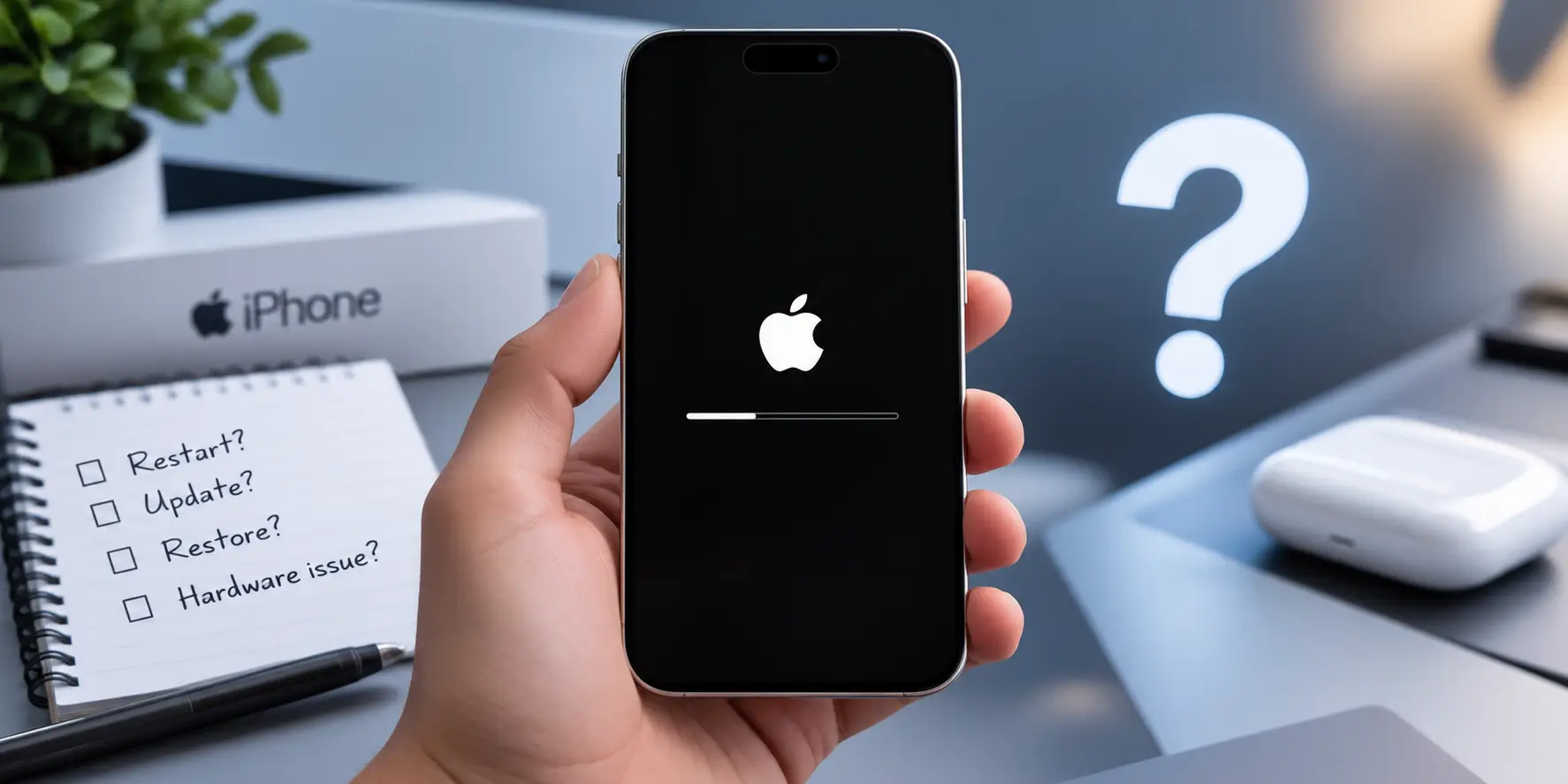
An iPhone stuck on the Apple logo has failed partway through booting. Most cases are software and clear with a force restart or a recovery mode Update, which keeps your data. Do a full restore only after that fails, because it erases the phone. If the logo returns after a clean restore, or the device runs hot, the fault is hardware and no amount of restoring will fix it.
The Apple logo is not a screen your iPhone is supposed to sit on. It appears for a few seconds while iOS loads the kernel and mounts the storage, then hands over to the lock screen. When it stays there, the boot sequence has stopped partway, and the reason it stopped is what decides whether this is a five-minute fix or a workshop job.
The good news is that most cases are recoverable, and a large share of them without losing anything, whether you fix it yourself or bring it to us for iPhone repair in Dubai. The important part is doing the steps in order, because the fastest-looking fix, a full restore, is also the one that erases your photos and messages. This guide works through the safe options first.
First, Identify Which Pattern You Are Seeing
Not every frozen logo means the same thing. The behaviour tells you a great deal before you touch anything, so find your pattern here first.
| What the screen is doing | What it means | What to do |
|---|---|---|
| Logo appears, stays frozen, nothing changes | The boot sequence has halted. iOS started loading and stopped. | Force restart, then recovery mode Update. |
| Logo appears, screen goes black, logo returns, repeating | A classic boot loop. iOS begins loading, hits a fault, and restarts itself. | Force restart, then recovery mode Update. If it loops through that too, suspect hardware. |
| Logo with a progress bar underneath | An update or restore is genuinely in progress. This is not a fault. | Leave it connected to power. It can take an hour or more on a large update. |
| Logo, then the phone shuts down completely | Almost always a power problem. The battery cannot sustain the current a boot demands. | Charge on a known-good cable for 30 minutes, then force restart. |
| Logo stuck and the phone is noticeably hot | A short or a failing component drawing current it should not. | Disconnect from power and stop trying. This needs a diagnostic, not another restore. |
| Logo stuck straight after a screen or battery replacement | A display or battery flex cable is not fully seated, or a shield was left off. | Return it to whoever performed the repair before restoring anything. |
Two of those deserve emphasis. A progress bar under the logo is not a fault, it is an update installing, and interrupting it is how many people create a real problem out of a normal wait. And a phone that is hot while stuck should be taken off charge, because repeated restore attempts on a shorting board can turn a repairable fault into an unrecoverable one.
What Causes an iPhone to Get Stuck on the Apple Logo?
Eight causes account for nearly everything we see on the bench. The first four are software, the last four are hardware, and telling them apart early saves both time and data.
1. An interrupted iOS update
By far the most common cause. If the phone loses power, loses Wi-Fi, or is restarted while it is writing the new system partition, iOS is left half-installed. The bootloader finds files it cannot verify and halts at the logo. This is also the most recoverable case, because the data partition is untouched.
2. Not enough free storage during an update
An update needs working room to unpack itself. A phone sitting at a few hundred megabytes free can start the process and then run out mid-write, corrupting the installation. It is why boot loops cluster around major iOS releases on nearly full devices.
3. Corrupted system files, a bad app or a failed jailbreak
A misbehaving app that loads at startup, a corrupted preference file, or an unofficial modification can all stop the boot sequence. Jailbreaking is a particular risk here, because it deliberately alters files iOS expects to verify.
4. A restore or migration that did not complete
Restoring from a backup, or transferring to a new phone, writes a large amount of data in one pass. Interrupting it leaves the phone in the same half-configured state as a failed update.
5. A battery that can no longer sustain the boot current
Booting draws more current than idling. A degraded battery can hold enough charge to light the logo and then collapse under load, so the phone loops or shuts down. This is why a stuck logo that starts behaving after 30 minutes on charge usually points at the battery rather than at iOS. A battery replacement resolves it.
6. Liquid damage and corrosion
Moisture that reached the board leaves conductive residue that keeps corroding long after the phone dried. When corrosion finally bridges the wrong two points, the phone stops booting, often weeks after the spill with no obvious trigger. If the device has ever been wet, mention it before any restore is attempted, because liquid damage repair needs cleaning, not software.
7. Impact damage to the board or a loose connector
A drop can crack a solder joint or unseat a connector without leaving a mark on the outside. The phone powers on, reaches the logo, fails to read something it needs, and stops. Where the fracture sits on the board decides whether this is a reseat or chip-level board repair.
8. NAND storage failure
The NAND chip holds iOS and all your data. When it degrades or its connections fail, the phone cannot read the system it needs to boot, and restores fail partway with connection-style errors. This is the most serious cause on the list, and the one where attempting repeated restores does real harm, because each attempt writes to a failing chip that still holds your only copy of your data.
How to Fix an iPhone Stuck on the Apple Logo
Work down this list in order. Each step is more invasive than the last, and the first three cannot lose you anything.
Step 1: Force restart
A force restart cuts power to the processor and starts the boot sequence again. It does not delete anything. The sequence differs by model, and using the wrong one is why people conclude it did not work:
| Your iPhone | Force restart sequence |
|---|---|
| iPhone 8 and every model since (including SE 2nd and 3rd gen) | Press and release Volume Up. Press and release Volume Down. Then press and hold the Side button until the Apple logo appears. |
| iPhone 7 and 7 Plus | Hold Volume Down and the Side button together until the Apple logo appears. |
| iPhone 6s, 6s Plus, SE (1st gen) and earlier | Hold the Home button and the Side or Top button together until the Apple logo appears. |
Hold the final button for around 10 to 20 seconds. If the logo disappears and reappears, that is normal, keep holding until it comes back on its own.
Step 2: Charge for 30 minutes, then try again
Use a wall adapter and a cable you know is good, leave it for half an hour, and force restart again. This one step resolves a surprising share of cases, because it rules out a battery too flat or too worn to carry a boot.
Step 3: Change the cable, the adapter and the port
Before assuming the phone is at fault, eliminate the accessories. A damaged cable or a failing USB port causes disconnections that look identical to storage failure, and produces the same restore error codes.
Step 4: Recovery mode, then choose Update, not Restore
Connect the iPhone to a computer and open Finder on macOS Catalina or later, or iTunes on Windows. Perform the force restart sequence for your model, but keep holding the final button past the Apple logo until the recovery mode screen appears. The computer will offer two choices, and the difference matters enormously:
Update reinstalls iOS and keeps your data. Restore erases everything.
Always choose Update first. It replaces the system files that failed while leaving the data partition alone, which fixes the majority of software-caused boot loops without costing you a single photo. Only move to Restore if Update fails, and only once you understand what you are giving up.
Step 5: DFU restore, with your eyes open
A DFU restore rewrites everything, including the bootloader, and erases the device completely. It is the last software option and it is genuinely destructive. If you have a recent iCloud or computer backup, this is a reasonable final attempt. If you do not, stop here and read the next section before you go any further.
Restore Error Codes and What They Actually Mean
If a restore fails, the error number is the single most useful piece of information you have. It separates a cable problem from a board problem:
| Error | What it commonly indicates | What to do |
|---|---|---|
| 4013, 4005, 4014 | The device disconnected mid-restore. Sometimes a faulty cable or USB port, but on a phone that has been dropped or wet it commonly points to the NAND storage chip or its solder joints. | Try a different Apple-certified cable and port once. If it repeats, stop and get a board-level diagnostic. |
| 9 | Connection lost while data was transferring, the same family of fault as 4013. | As above. Repeated error 9 after a drop usually means hardware. |
| 14 | Data corruption during transfer, often USB related but sometimes storage. | Change cable and port, retry once, then seek a diagnostic. |
| 3194, 17 | A software-side problem. The computer could not reach Apple signing servers, often because of an edited hosts file or outdated iTunes. | Update Finder or iTunes, check your connection, and retry. This one is usually fixable at home. |
| 53 | Historically tied to Touch ID or sensor mismatch after a third-party repair. | Have the original parts refitted or properly paired. |
The pattern worth internalising: 3194 and 17 are usually your computer, while 4013, 4005, 4014 and 9 are usually the phone. Trying the same restore ten times after a 4013 does not improve the odds, and on a failing NAND it actively reduces them.
Before You Restore: Protecting Your Data
This is the part that gets skipped, and the one people regret. A phone stuck on the logo has not lost your data. The storage chip still holds your photos, messages and documents. What destroys them is the restore performed to fix the boot.
So before you erase anything, answer one question honestly: is there a backup you could actually restore from? Not a backup you meant to make, one you can see in iCloud settings or on your computer with a recent date.
If the answer is no, do not run a DFU restore. Bring the phone in first. Data can very often be extracted directly from the NAND chip even on a device that never boots again, but only while that chip has not been overwritten. Our iPhone data recovery service exists precisely for the phones that reach this point, and every restore attempt narrows what is recoverable.
When It Is Hardware, Not Software

Three signals move this out of the software category, and once you see any of them, more restores are wasted effort:
- The logo returns after a completed, clean restore. Fresh iOS, same fault, means the fault was never in iOS.
- The phone gets hot while stuck or while connected. That is current going somewhere it should not.
- The computer does not reliably detect the phone, or restores fail at the same percentage every time with a 4013-family error.
Context matters too. A phone that was dropped, or that has ever been wet, or that started looping right after a third-party screen or battery fitting, is far more likely to be a hardware case from the outset. In those situations the useful next step is a diagnostic under a microscope, not another cable.
Getting It Fixed in Dubai
At My Celcare JLT, every iPhone repair in Dubai starts the same way, and a stuck-logo device is no exception: a free diagnostic that establishes whether this is software, power, or board level, before anything is erased and before any price is quoted. That order matters, because the cheapest outcome and the safest outcome for your data are usually the same one.
Software-caused boot loops are frequently resolved the same day. Power-related cases usually come down to a battery. Board-level faults, including NAND and corrosion damage, are repaired at component level under magnification rather than by swapping the whole board, which is what makes data recovery possible on devices other workshops decline. Walk in to Gold Crest Executive Tower, Cluster C, Jumeirah Lakes Towers, a short walk from DMCC Metro, or book a free collection anywhere in Dubai.
One request that saves phones: tell us what you already tried. Whether the device has been restored, how many times, and whether it was ever dropped or exposed to liquid changes the approach entirely.
